October 11, 2026
Finding the best video editing software for PC in 2026 can feel overwhelming. There are dozens of editors promising professional results, AI-powered tools, fast exports, and easy workflows. But you do not necessarily need expensive software to create polished YouTube videos, social media content, tutorials, product videos, or short films.
The right choice depends on your experience, PC hardware, budget, and the type of videos you create.
For most users, DaVinci Resolve is the strongest free option for advanced editing, while CapCut is an excellent choice for fast social-media content. Kdenlive and Shotcut are worth considering if you prefer open-source software, while Adobe Premiere remains a powerful choice for professional workflows.
This guide compares the best free and cheap video editing software for Windows PCs so you can choose the right tool without wasting money or time.
What Makes a Good Video Editing Program in 2026?
Video editing has changed significantly. Modern editors are no longer just about cutting clips and adding transitions. AI-assisted features, automatic captions, background removal, color correction, audio enhancement, motion graphics, and social-media workflows have become increasingly important.
Before choosing software, consider these factors:
The most expensive editor is not automatically the best editor. The best software is the one that matches your workflow.
Best Video Editing Software for PC in 2026
1. DaVinci Resolve – Best Free Video Editing Software
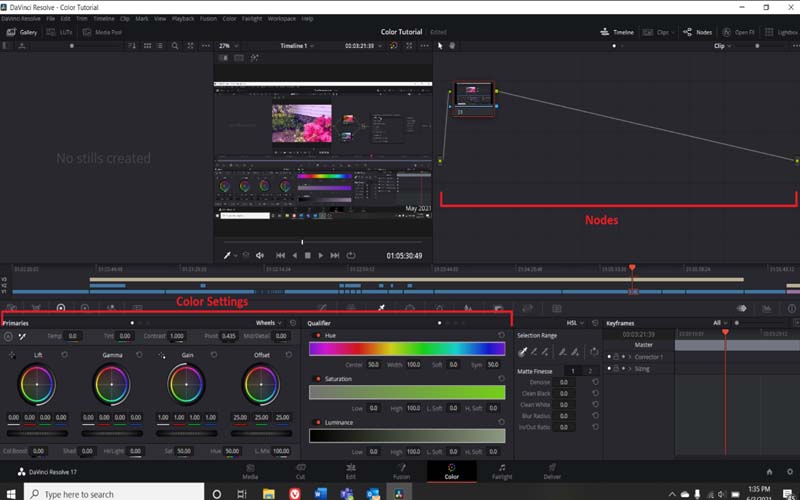
DaVinci Resolve is one of the strongest choices for anyone searching for professional video editing software without a monthly subscription.
It combines editing, color correction, visual effects, motion graphics, and audio post-production in one application. That makes it suitable for everything from YouTube videos and corporate projects to more demanding film workflows.
The free version is unusually capable. Beginners can start with basic cuts and gradually learn advanced features as their skills improve.
Why Choose DaVinci Resolve?
The biggest drawback is the learning curve. Its extensive interface can initially look intimidating.
Best for: YouTubers, filmmakers, advanced users, and anyone who wants professional tools for free.
Expert tip: If you are new to Resolve, learn the Cut and Edit pages first. Do not try to master every feature at once.
2. CapCut – Best for Beginners and Social Media Videos
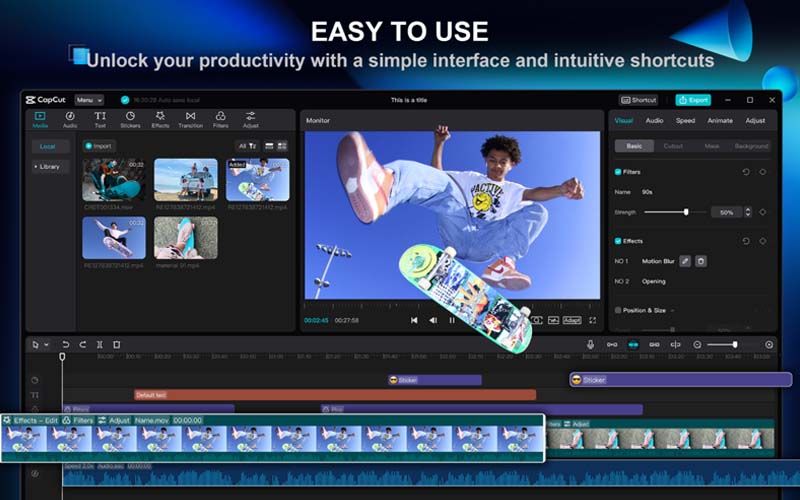
CapCut has become a popular choice for creators who want to produce videos quickly. Its desktop editor combines traditional timeline editing with templates, effects, captions, animation, and AI-assisted features.
It is particularly useful for short-form videos such as YouTube Shorts, Instagram Reels, and TikTok-style content.
Why Choose CapCut?
CapCut is especially useful when speed matters. A creator who needs to turn raw footage into a short promotional video may prefer its streamlined workflow over a more complex professional editor.
Best for: Beginners, influencers, marketers, and social-media creators.
Expert tip: Do not rely entirely on templates. Customize typography, pacing, colors, and transitions so your videos maintain a consistent brand identity.
3. Kdenlive – Best Open-Source Video Editor
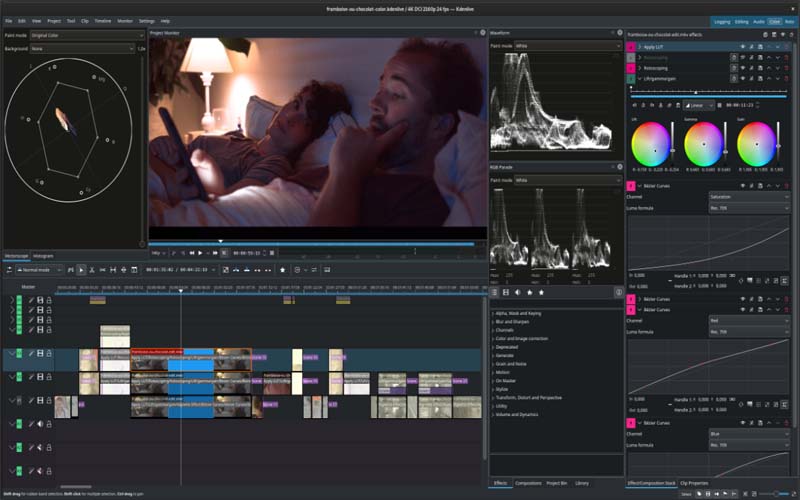
Kdenlive is a free, open-source video editor available for Windows and other major desktop platforms. It offers considerably more control than many basic editing applications.
Its workflow supports multi-track editing, effects, transitions, keyframes, color correction, subtitles, audio tools, and proxy workflows.
That combination makes it useful for creators who want advanced editing without paying for commercial software.
Why Choose Kdenlive?
The interface may take some time to learn, particularly if you have only used simple editors.
Best for: Advanced beginners, hobbyists, independent creators, and open-source enthusiasts.
Expert tip: Use proxy files when editing large or high-resolution footage on a modest PC. It can make timeline playback much smoother.
4. Shotcut – Best Lightweight Free Video Editor
Shotcut is another free and open-source option. It supports a broad range of video and audio formats and offers a traditional desktop editing workflow.
It is a practical choice for users who want essential editing features without paying for a subscription.
Why Choose Shotcut?
Shotcut is not designed to imitate every feature of high-end professional software. Its strength is flexibility and accessibility.
Best for: Beginners, hobbyists, students, and users with limited budgets.
Expert tip: Organize your media before editing. Separate footage, music, graphics, voice recordings, and exports into clearly named folders.
5. Adobe Premiere – Best for Professional Video Editing
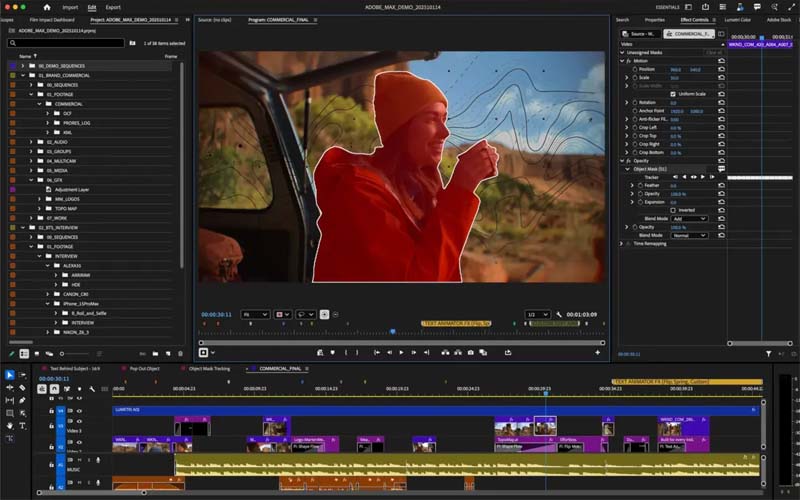
Adobe Premiere is a major choice for professional video editors, agencies, filmmakers, marketers, and production teams.
It provides extensive control over video, audio, graphics, color, captions, and media organization. Its integration with the wider Adobe ecosystem can also be valuable for teams working with Photoshop, After Effects, and other creative applications.
Modern Premiere workflows also include AI-assisted capabilities designed to speed up tasks such as finding footage, working with transcripts, and improving dialogue.
Why Choose Adobe Premiere?
The main disadvantage is cost. Premiere is generally better suited to people who edit regularly enough to justify a paid plan.
Best for: Professional editors, agencies, businesses, filmmakers, and experienced creators.
Expert tip: Build reusable project templates for recurring work. Standardized bins, sequences, graphics, and export settings can save substantial time.
6. Clipchamp – Best for Simple Windows Video Editing
For users who do not need a complex professional editor, Clipchamp provides a straightforward approach to everyday video creation.
It can be useful for presentations, tutorials, simple marketing videos, screen recordings, and social-media content.
Its accessible interface makes it suitable for users who want to start editing without dealing with a professional application’s steep learning curve.
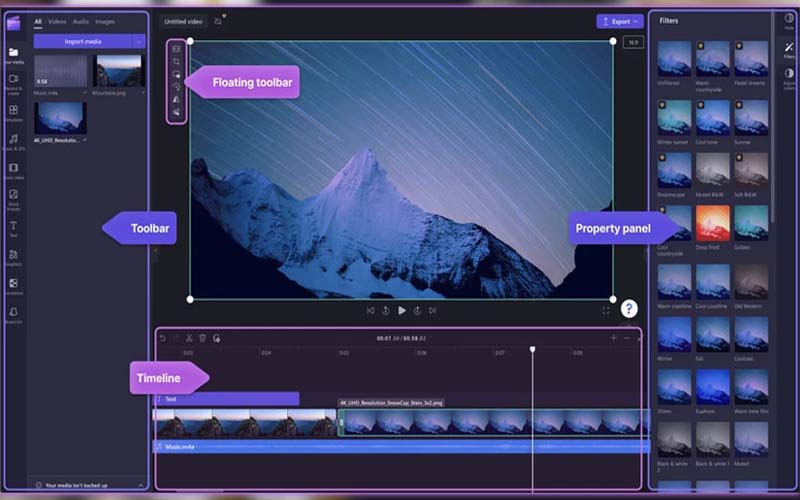
Best for: Beginners, students, office users, educators, and simple video projects.
Best Free vs. Paid Video Editors
The decision between free and paid video editing software should be based on your actual needs.
| Software | Price Approach | Best For | Learning Curve | Advanced Editing |
| DaVinci Resolve | Free + paid version | Professional editing | Medium/High | Excellent |
| CapCut | Free + optional paid features | Social media | Low | Good |
| Kdenlive | Free | Advanced free editing | Medium | Very Good |
| Shotcut | Free | Basic to intermediate editing | Medium | Good |
| Adobe Premiere | Paid | Professional work | Medium/High | Excellent |
| Clipchamp | Free + paid options | Simple projects | Low | Basic/Moderate |
If you are learning video editing, start with free software. You can always upgrade later when a specific limitation begins affecting your work.
Which Video Editing Software Is Best for You?
There is no universal winner. Your ideal editor depends on what you are trying to accomplish.
Best for Beginners
Choose CapCut or Clipchamp if your priority is a simple interface and quick results.
Best Free Professional Editor
Choose DaVinci Resolve if you want advanced editing, color grading, visual effects, and audio tools without starting with a paid subscription.
Best Open-Source Editor
Choose Kdenlive or Shotcut if you want free software with no commercial subscription requirement.
Best for Professional Work
Choose Adobe Premiere if you need a mature professional workflow and integration with other Adobe applications.
Best for YouTube
DaVinci Resolve is a strong choice for long-form YouTube videos, while CapCut can be convenient for Shorts and fast social-media content.
Best for Social Media
CapCut is particularly well suited to creators who need quick edits, captions, templates, effects, and vertical video workflows.
What PC Specs Do You Need for Video Editing?
Software is only part of the equation. Your computer’s hardware can dramatically affect the editing experience.
For basic 1080p projects, a modern PC with sufficient RAM and SSD storage can be adequate. More demanding 4K projects, advanced effects, and professional color workflows benefit from stronger hardware.
A practical editing PC should ideally include:
If playback becomes slow, do not immediately assume you need a new computer. Try lowering preview quality, creating proxy files, closing unnecessary applications, and storing active projects on a fast SSD.
Common Video Editing Mistakes to Avoid
Even the best editing software cannot fix a poor workflow.
Using Too Many Effects
Transitions and effects should support the story rather than distract from it. Simple cuts are often more effective than constant animations.
Ignoring Audio
Viewers may forgive average visuals, but distracting background noise or unclear dialogue can make a video difficult to watch.
Use noise reduction carefully and keep speech at a comfortable, consistent level.
Editing Without a Plan
Before opening your editor, decide what the video needs to accomplish. A simple outline can prevent hours of unnecessary editing.
Exporting With the Wrong Settings
Match your export resolution and frame rate to the platform and original footage. Avoid repeatedly exporting and re-compressing the same file.
Keeping Everything on One Drive
Video files can consume enormous amounts of storage. Keep backups of important project files and raw footage.
Tips for Faster Video Editing
A few workflow changes can dramatically reduce editing time.
Frequently Asked Questions
What is the best free video editing software for PC in 2026?
DaVinci Resolve is one of the strongest free options for users who want professional editing capabilities. Kdenlive and Shotcut are also excellent choices for people who prefer free and open-source software.
Which video editor is easiest for beginners?
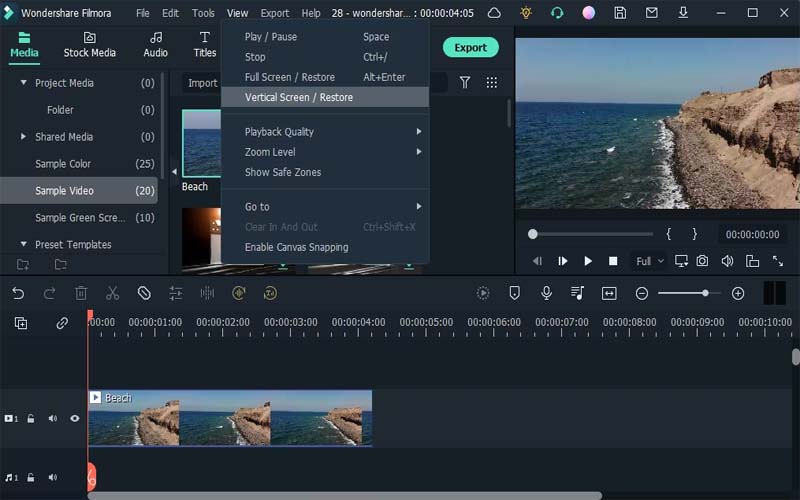
CapCut and Clipchamp are good starting points because their interfaces are relatively easy to understand. Filmora is another beginner-friendly option for users who want more built-in creative tools.
Is DaVinci Resolve really free?
Yes. DaVinci Resolve has a free version with a substantial collection of editing, color, effects, and audio tools. A paid Studio edition is available for users who need additional advanced features.
Is CapCut good for PC video editing?
Yes. CapCut’s desktop editor is particularly useful for short-form content, social-media videos, captions, effects, templates, and fast editing workflows. It can also handle more advanced editing tasks than many beginners initially expect.
Which video editing software is best for YouTube?
For long-form YouTube production, DaVinci Resolve and Adobe Premiere are strong choices. For Shorts and quick social content, CapCut can provide a faster workflow.
Can I edit 4K video on a normal PC?
Yes, but performance depends on your processor, RAM, GPU, storage, footage format, and editing software. Proxy workflows and lower preview quality can help when native 4K playback is slow.
Should beginners buy expensive video editing software?
Usually, no. Start with a capable free editor and learn the fundamentals. Upgrade when you encounter a specific feature or workflow limitation that genuinely affects your projects.
The best video editing software for PC in 2026 depends less on the number of features and more on how those features fit your workflow.
Final Thoughts
For a powerful free solution, DaVinci Resolve is an excellent starting point. For quick social-media content, CapCut offers a convenient and beginner-friendly workflow. Kdenlive and Shotcut are strong open-source alternatives, while Adobe Premiere remains a compelling choice for professional users who need an established production environment.
Before choosing software, think about your video type, skill level, computer hardware, and budget. Download or test a suitable option, edit a small real project, and evaluate how comfortable the workflow feels.
Good editing is ultimately about storytelling, timing, sound, and clarity—not simply having the most expensive software.
If you’re ready to improve your video content, start with the editor that fits your current needs, learn its core tools, and build your workflow from there. And if your projects also require professional image preparation, background removal, clipping paths, or other visual assets, Clippingimages.com can help you prepare the supporting graphics your videos and campaigns need.